

How do I set up my Business Email?
If it’s one question we get asked a lot when we’re helping new (and old!) businesses get started, it’s “How do I set up my Business Email??!”.
Most of us are used to the incredibly simple login and go methods that services like Outlook & Gmail provide when using their default email addresses and when it comes to personal emails they’re perfect. But when a customer wants to get in touch with a business, an Outlook or Gmail account can seem unprofessional at best or lazy at worst.
This is why most web hosting, (including MetOne!), services provide you with mailboxes directly linked to your domain name so that you can create far more professional emails for your customers to use, from the typical “info” and “sales” accounts, to more specific or even named accounts for your entire team.
However these accounts are a little more manual than simply logging in with a user name and password, you’ll have to add in your incoming and outgoing servers to your mail client to make sure that it works! For the most part, all email clients (Apple Mail, Outlook, Gmail, Mailbird, etc,) will require the same details which your host will provide you, often in your hosting control panel under something like Email Account Setup.
Let’s go through what you’ll find:
Username: This will simply be the email address (example: email@met1.co.uk).
Password: Each mailbox will have its a password assigned to it. Your control panel will often set up a randomly generated one for you, but you can change this to your own. It’s incredibly important to have a strong password for your email, preferably with a mix of letters, numbers and punctuation if your account allows for it. It’s also recommended to have a unique password for your email account compared to any other accounts you may have so that if a security breach does happen on another site (such as Amazon, eBay, etc), somebody can’t use the breached password to get into your emails as well.
Incoming Server: This will have 2 options, an IMAP server and a POP3 server. The basic difference between them is IMAP is better if you’re using the same email on multiple devices, while POP3 is better on a single device and if you have a very large amount of emails. We recommend IMAP as the emails remain on the server rather than being stored on the local device. Depending on your host the server will either be “imap.yourdomain.com” (imap.amazon.com as an example) or “imap.webhost.com” (imap.godaddy.com). This will need to go into the “incoming server” field on your email client.
IMAP/POP3 Port: Your client may also ask for a port number, which will be supplied to you as well. You may be given a choice of SSL and Non-SSL ports, the former of which to be used if your domain has an SSL certificate (which it should!) and is recommended.
Outgoing Server: This should start with SMTP and like the Incoming Server, will be either based on your domain (smtp.amazon.com) or based on your Hosting service (smtp.godaddy.com).
SMTP Port: Just like the incoming ports, this will have options for SSL and Non-SSL ports for you to add to your client. The type of port should match with your incoming ports, so either both will be SSL or both will be Non-SSL.
Some email clients may also ask for your username and password for the Outgoing server, so make sure to fill those boxes if they’re included.
As an example, we’ll go through how to add this to Apple Mail. This method should apply to the most common email clients as well.
First of all, Apple Mail askes us what type of account we’d like to use and as you can see it provides to usual options. However as we’re using an IMAP account, we’re going to use “Add Other Account” and then “Mail account”.

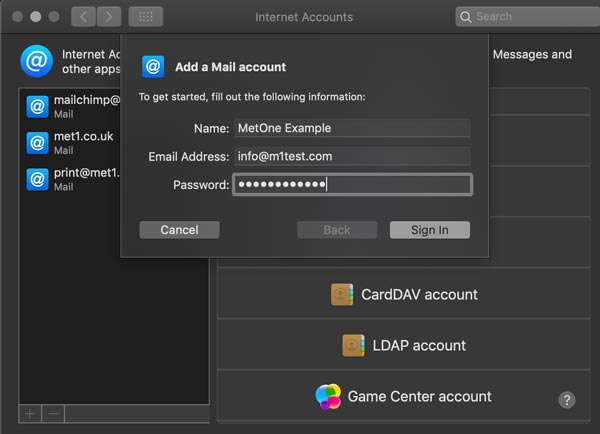
Then we need to fill out the provided fields. In this case, we have “name” which is just what the mailbox will be labelled in the client, then we have the Email Address itself and password.
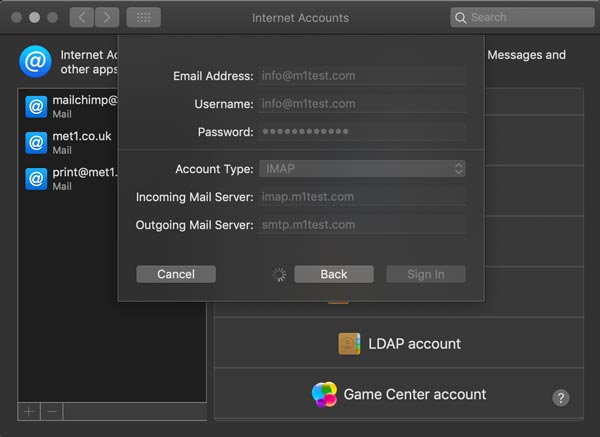
Now we fill out the remaining options, selecting the IMAP account type and adding in the Incoming and Outgoing servers, before signing in. In this case, it hasn’t asked for an IMAP/SMTP port as Apple Mail by default automatically manages the connection settings, but other clients may do and will have a separate field for them.
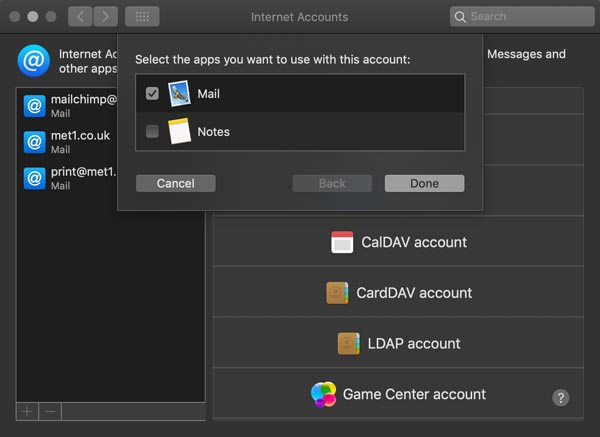
As these details are all correct, the account is then added to our client.
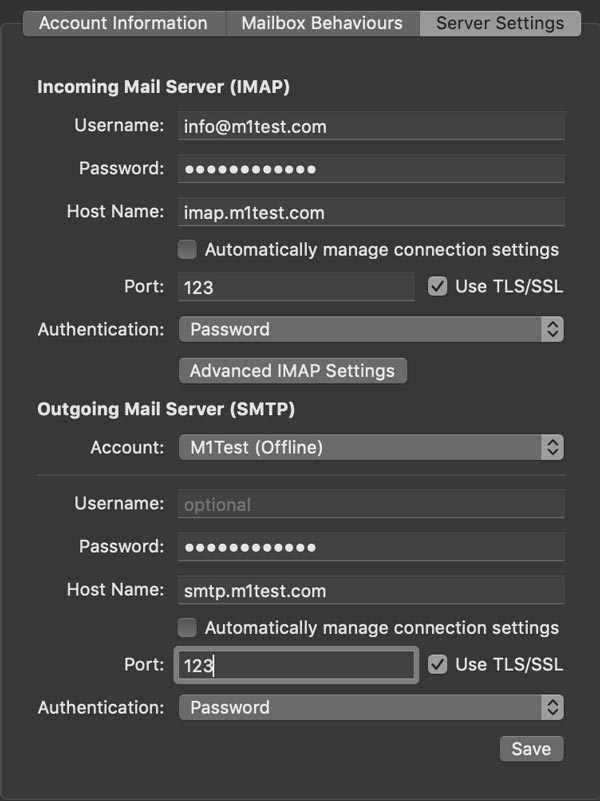
If we want we can manually change the more advanced settings such as the ports and further authentication for more security, but for now we’ll use the automatic settings provided.

We hope that that was of help to you! Setting up a business email can seem daunting if you’ve never done it before but as long as you have all of the right information then it’s relatively simple and just a case of filling out the right fields. If you run into any problems, your Web Host should either be able to provide assistance or even an online portal to log into. This would be stackmail.com if you’re hosted with us!
If you’d like more information on our services, head over to What We Do or Our Work for some of our previous works, including some websites that we host! In fact, if you’d like to enquire about a website, do get in touch at hello@met1.co.uk.